AI Terminal
AI Terminal for Revolution EDA
This guide explains how to use the AI Terminal plugin inside Revolution EDA. The AI Terminal lets you inspect the current design JSON, send natural-language modification requests, and undo AI-driven changes if the result is not what you wanted.
Quick Orientation
- The AI Terminal opens inside an editor window such as schematic, symbol, or layout.
- It works on the current design file associated with that editor.
- Before an AI modification is attempted, the plugin creates a backup of the file.
- Successful AI edits trigger a design reload in the editor.
- API keys can be entered from the terminal and are stored in encrypted form under the user’s local configuration directory.
What the AI Terminal Is For
The AI Terminal is designed for command-driven edits and design inspection, for example:
- reading the current design JSON
- requesting an explanation of a design structure
- making controlled changes to the current file
- undoing the last AI-driven change via the generated backup
Opening the AI Terminal
- Open a schematic, symbol, or layout editor window.
- Use the AI Terminal action added by the plugin configuration under the
Toolsmenu.
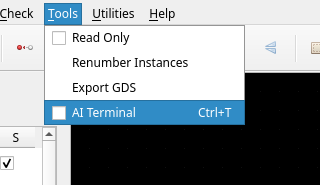 3. The terminal panel appears inside the editor window.
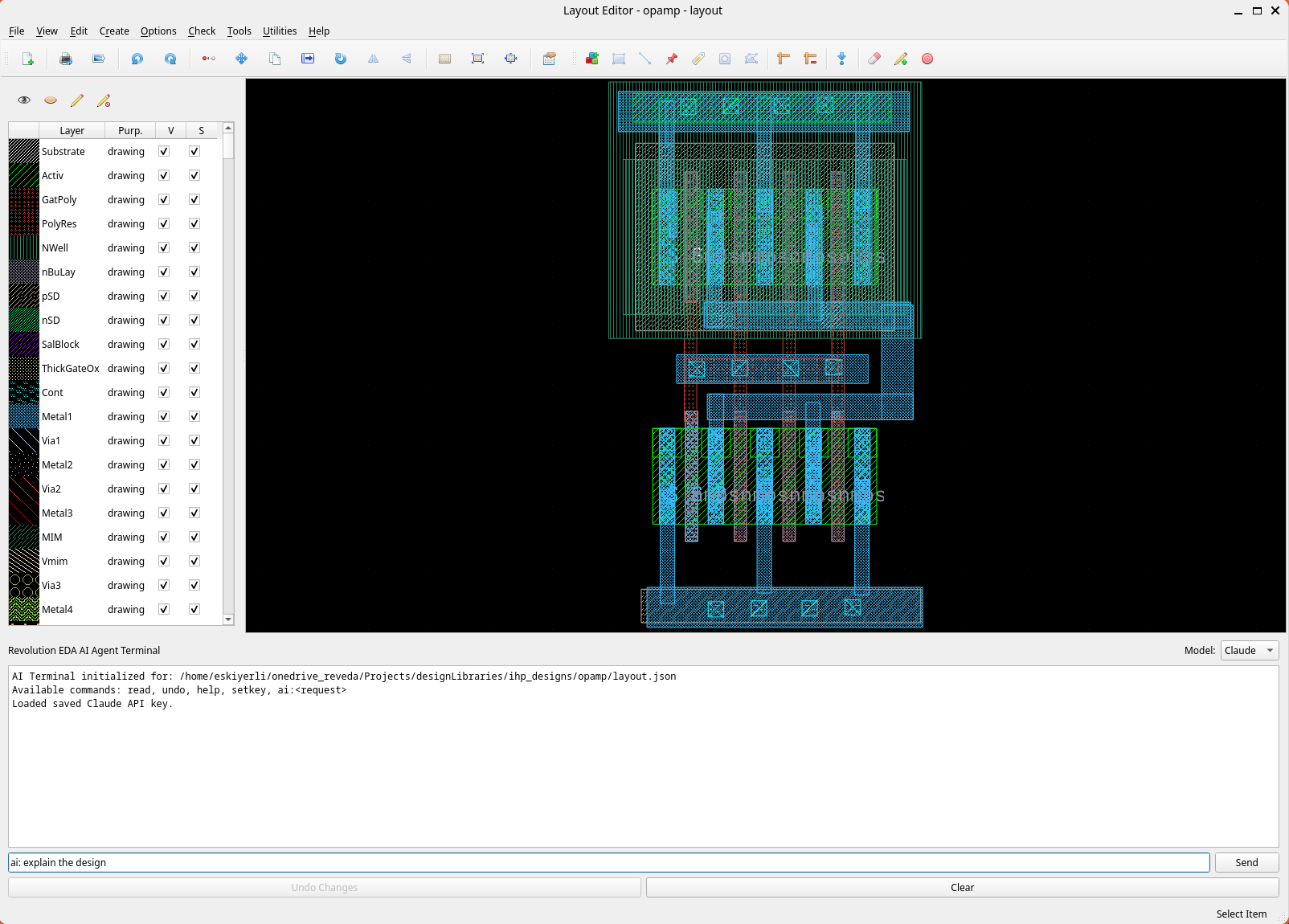
Terminal Layout
The panel contains:
- an output area
- a single-line command input
- a Send button
- an Undo Changes button
- a Clear button
- a Model selector
The current model selector offers:
- Claude
- OpenAI
- Gemini
At the moment, the OpenAI backend is listed in the UI but is not implemented yet.
Commands You Will Use Most
The terminal understands a small command set.
| Command | Purpose |
|---|---|
help | Show the built-in help text |
read | Display the current design JSON |
setkey | Prompt for an API key for the currently selected model |
ai:<request> | Send a natural-language request to the active AI backend |
undo | Restore the backup file and reload the design |
The Clear button clears the output area, but it is a button action rather than a typed terminal command.
Typical Workflow
- Open the AI Terminal from an editor window.
- Select the model you want to use.
- Run
setkeyand enter your API key. - Optionally run
readto inspect the current design JSON. - Submit a request using
ai:<request>. - If the result is not acceptable, use
undoor click Undo Changes.
Example session:
> setkey
[enter API key in the dialog]

> read
[current design JSON is shown]

> ai:Analyze this design and suggest improvements.

> undo
[restores the backup and reloads the design]
Example Requests
The best requests are concrete and limited to the currently open design.
ai:Analyze this design and explain what each block does.ai:Rename instance I1 to I_buffer.ai:Add a label named VDD near the power connection.ai:Move the selected structure 50 units to the right.ai:Change the width of transistor M1 to 2um.
Exact results depend on the current editor type and what the backend can safely represent in the design JSON.
Safety Features
The AI Terminal includes several safeguards.
- Automatic backup: before an AI modification, the plugin copies the current design file to a backup.
- Undo support: the backup can be restored through
undoor the Undo Changes button. - Library path scoping: the AI agent is initialized with the current library path.
- Reload on success: after a successful change, the editor reloads the design.
Backup files are created as:
<design_file>.json.bakWhen an undo succeeds, the backup is removed.
API Key Handling
API keys are entered through the setkey command. The plugin stores keys in encrypted form in
the user’s local configuration directory.
The terminal currently supports loading and saving keys per provider, such as:
claudegeminiopenai
If a saved key is available for the selected model, the plugin loads it automatically when the backend is created.
Limitations
- The AI Terminal works on the current design file, not on an entire project at once.
- OpenAI is visible in the model selector but is not implemented yet.
- AI requests require network access and a valid API key.
- AI-driven changes are constrained by the structure the backend can safely read and write.
Troubleshooting
“API key not set”
- Run
setkeyand enter a valid key for the currently selected model.
“OpenAI backend not implemented yet”
- Switch the model selector to Claude or Gemini.
Changes do not appear in the editor
- Successful AI changes should trigger an automatic reload.
- If needed, use the editor’s
File -> Update Designaction.
undo says no backup is available
- A backup is only created when an AI modification is attempted successfully enough to start the change flow.
- If no AI change was run, there may be nothing to undo.
File Locations
For users who want to inspect the implementation:
- Plugin UI:
plugins/aiTerminal/aiTerminal.py - Claude backend:
plugins/aiTerminal/claudeAiAgent.py - Gemini backend:
plugins/aiTerminal/geminiAiAgent.py
Final Notes
- Use small, specific requests instead of broad “rewrite everything” prompts.
- Run
readfirst if you want to understand what the AI is about to modify. - Keep in mind that the plugin operates on editor design files rather than arbitrary project documents.
- Use
undoas soon as a result looks wrong; the backup/restore flow is built for exactly that purpose.