Plugins
This guide explains what plugins are in Revolution EDA, how users install and use them, how developers create them, how config.json works, and how plugins are published to the Revolution EDA plugin registry.
Quick Orientation
- Plugins extend Revolution EDA without changing the core application.
- End users typically encounter plugins as extra menu items, new editor actions, or support for additional view flows.
- Browse available packages through Plugins → Browse Plugins… in the main window.
- Developers package plugins as Python packages with a
config.jsonfile and callable callback functions.
What Plugins Are
Plugins are add-ons that extend Revolution EDA without modifying the core application. Typical plugin categories are:
- Simulation workflows
- Result plotting tools
- AI-assisted design tools
- Schematic-driven layout synchronization
- Custom view handlers and editor menu actions
In daily use, plugins usually appear as additional menu actions in editors or as handlers for specific view types.
How Plugins Are Loaded
At startup, Revolution EDA loads plugins from the directory configured by REVEDA_PLUGIN_PATH.
- The loader scans that directory with
pkgutil.iter_modules(). - The loader reads each package’s
config.jsonand checks API and core-capability compatibility before importing it. - Compatible packages are imported; incompatible plugins are skipped and reported in
reveda.log. - The configuration also wires up editor menu actions.
Important:
- If
REVEDA_PLUGIN_PATHis not set, the application falls back to~/.reveda/plugins/. - Set the plugin directory through application setup, then restart the application. The main-window Plugins → Browse Plugins… menu opens the registry.
Plugin Folder Structure
Each plugin should be a Python package under the plugin directory:
<plugins_path>/
  myPlugin/
    __init__.py
    config.json
    <implementation>.py
    README.md            (recommended)
Minimum required files:
__init__.pyso Python can import the packageconfig.jsonfor metadata and menu definitions
Using Plugins (End Users)
Most users only need three steps:
- Open the plugin registry UI from Plugins → Browse Plugins….
- Install the plugin you want.
- Restart Revolution EDA.
Install from Plugin Registry UI
- Open Plugins → Browse Plugins… in the main window.
- The Plugin Registry fetches published package metadata from
https://plugins.reveda.eu/plugins.json. As of 8 October 2026 it lists RevSDL for Linux x86_64, but not AI Terminal, RevedaSim, or RevedaPlot; check the catalog for updates and compatible builds.
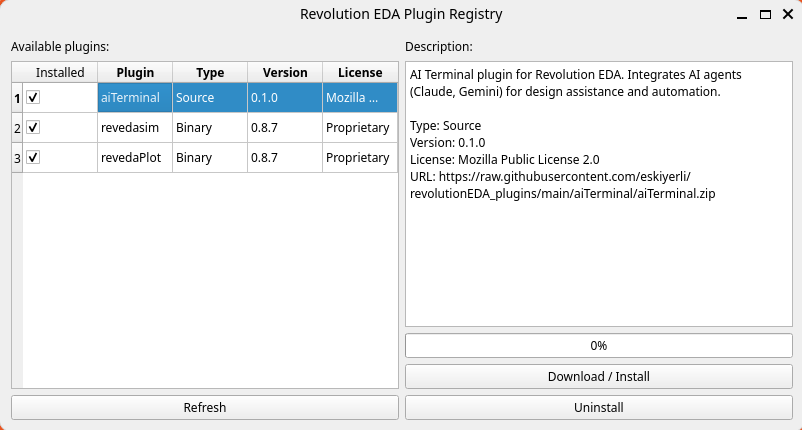
- Select a plugin and click
Download / Install. - After a successful installation, choose
Restart Nowto activate it immediately orLaterto keep working.
Commercial plugins install the required revedaLicense module first when it is not already present; the selected plugin download resumes automatically afterward.
Notes:
sourceplugins use a singleurlfield in the registry.binaryplugins can providebinary_urls; the app chooses the best URL for your OS, CPU, and Python version.
Uninstall
- Open Plugins → Browse Plugins….
- Select an installed plugin.
- Click
Uninstall. - Restart Revolution EDA.
Manual Install
- Copy plugin folder into your configured plugins directory (
REVEDA_PLUGIN_PATH). - Ensure plugin contains
__init__.pyandconfig.json. - Restart the app.
config.json Explained
The plugin loader reads each plugin’s config.json and uses menu_items to inject menu actions.
What config.json Actually Does At Runtime
The loader discovers packages by folder name, reads <plugin>/config.json before importing them, and checks compatibility first. Compatible plugins are imported, then menu_items registers UI actions; missing callbacks are skipped.
What is required for menu wiring:
menu_itemslist- For each item:
location,menu,action,callback;applymust name the actual target window classes.
Optional compatibility fields include plugin_api, min_app_version, max_app_version, requires_core, and provides. plugin_version is used for update notices. license and license_required also control callback licensing for commercial plugins.
Version and capability negotiation
An incompatible plugin is skipped before its code is imported; reasons are logged in reveda.log. Plugins without declared constraints use the original API 1 menu-callback contract. The current core implements plugin API 2. Use provides to declare capabilities such as sdl, and requires_core for dependencies such as sdlAdapterV1. An installed compatible provider remains visible even if its commercial actions require activation.
Discovery and update checks
The application menu has Plugins → Browse Plugins… and Updates (N). An optional discovery banner can be dismissed for 90 days. Once a day, a background check compares installed plugin_version values against the registry; updates are highlighted in the catalog, and REVEDA_DISABLE_UPDATE_CHECK disables the background request.
Example:
{
  "plugin_name": "myPlugin",
  "plugin_version": "0.1.0",
  "description": "Example plugin",
  "license": "Mozilla Public License 2.0",
  "author": "Your Name or Company",
  "menu_items": [
    {
      "location": "menuBar",
      "menu": "Tools",
      "action": "My Action",
      "text": "Run My Action",
      "callback": "runMyAction",
      "shortcut": "Ctrl+M",
      "checked": 0,
      "apply": ["schematicEditor", "symbolEditor", "layoutEditor"]
    }
  ]
}
Key fields in menu_items:
menu: existing menu name where action is added (for exampleTools,Simulation,Results)callback: function name in plugin module (__init__.pyimported symbols)apply: list of window class names where action is visible- Optional:
text,icon,shortcut,checked,read_only_safe. Actions default to mutating and are disabled when the editor is read-only due to a design lock; mark non-mutating actionsread_only_safe: true.
Commercial menu licensing
Commercial actions are installed as menu items but gated when selected. Without an entitlement, the license dialog opens before the callback runs. License state does not remove a compatible plugin’s capability or its menu actions.
Free access until April 1, 2027: All four first-party plugins—aiTerminal, RevedaPlot, RevedaSim, and RevSDL—are free to use until April 1, 2027 at 00:00 UTC. No paid license or activation key is required during this period. You still need to install a compatible plugin build; external AI API usage and circuit simulators are not included. This offer does not apply to third-party plugins. After the cutoff, normal commercial licensing applies.
Real Examples
aiTerminal example:
aiTerminal/config.jsonadds AI Terminal underUtilitiesin the schematic, symbol, and layout editors.- The
toggleAITerminalcallback opens the licensed terminal panel. - Its second menu item adds AI Terminal under
Toolsin the simulation window.
revedasim example:
plugins/revedasim/config.jsondefinesSimulation Environment...underSimulationmenu forschematicEditor.callbackisstartRevedasim.plugins/revedasim/__init__.pyexposesstartRevedasim.plugins/revedasim/simMainWindow.pyimplementsdef startRevedasim(schematicEditor): ....
Important distinction:
config.jsondoes not define view-type dispatch.- View dispatch uses plugin module attributes/functions such as
viewTypes,createCellView, andopenCellView(as used byrevedasim).
Practical rules:
- Keep plugin folder name and importable package name consistent.
- Ensure callback functions are exposed and importable.
- Keep import side effects minimal to avoid startup failures.
Creating a Plugin
- Create a package directory under your plugins path.
- Add
__init__.pywith callable functions used by menu callbacks. - Add
config.jsonwith metadata andmenu_items. - Test by restarting Revolution EDA and checking
reveda.log. - If needed, add support for view opening by exposing
viewTypespluscreateCellViewand/oropenCellViewin the plugin module.
Minimal __init__.py example:
def runMyAction(editor_window):
    editor_window.logger.info("My plugin action executed")
Plugin Registry (plugins.json) Format
The active registry is served at https://plugins.reveda.eu/plugins.json. It contains a top-level plugins list; each entry provides a name, version, license, description, package type, and download locations. For binary plugins, binary_urls selects a build by operating system, architecture, and Python version (for example linux-x86_64-py3.14). Do not assume that a plugin described on this site is already listed or has a compatible build in the catalog.
Plugin authors should package a ZIP that extracts into the plugin folder, provide matching config.json metadata, and test callback imports and supported platforms. Publishing is repository-based — there is no in-app upload: clone revolutionEDA_plugins, add the ZIP file(s) plus a plugins.json entry, and open a pull request describing the plugin name, version, license, download URLs, and tested platforms. Plugins may carry their own license terms, independent of Revolution EDA’s licensing. After merge, users can install the plugin from Plugins → Browse Plugins…. Restart the application after installing or updating a plugin.
Troubleshooting
Plugin not shown:
- Verify
REVEDA_PLUGIN_PATHpoints to the correct folder. - Verify plugin folder contains
__init__.pyand validconfig.json. - Restart app after install/uninstall.
Plugin found but action missing:
- Check
menuname matches an existing menu in target window. - Check
applyincludes the actual editor class name. - Check callback function exists in the plugin module.
Import/load failure:
- Inspect
reveda.logforFailed to load plugin ...errors. - Install missing Python dependencies in the same environment used by Revolution EDA.
Related Files
reveda.pyrevedaEditor/backend/pluginsLoader.pyrevedaEditor/gui/pluginsRegistry.pyplugins.json- Binary Plugins guide.