Paid plugin
RevedaSim
EUR 29.99 + VAT/month
This plugin is available as a commercial add-on for Revolution EDA.
RevEDA Simulation Plugin
RevEDA Simulation (revedasim) integrates Xyce, and VACASK with Revolution EDA. It supports simulator-dependent DC, AC, transient, noise, and harmonic balance workflows from the schematic editor, including parameter sweeps. Result plotting requires the separate revedaPlot plugin.
Features
Simulator Support
- Xyce Integration: Full support for Sandia National Labs’ Xyce circuit simulator with binary and ASCII raw file output
- Ngspice Integration: Support for Ngspice open-source simulator with SPICE-compatible netlist generation
- VACASK Integration: VACASK simulator support with its own analysis setup, hierarchical netlisting, and sweep workflows
- Extensible Factory Architecture: New simulators can be registered through the SimulatorFactory pattern without modifying core code
- Simulator Selection: Choose between available simulators in the Simulation Setup dialog
Analysis Types
- Operating Point (OP): DC operating point analysis with configurable save options
- Transient (TRAN): Time-domain simulation with initial step, stop time, max step, scheduled events, and UIC support
- AC Analysis: Small-signal frequency response with linear, octave, and decade sweep options
- Noise Analysis: Input-referred and output noise calculations with configurable source resistance
- DC Sweep: Linear and logarithmic sweeps of voltage/current sources or parameters
- Harmonic Balance (HB): Steady-state analysis for nonlinear circuits with multi-tone support, configurable harmonics, and time-domain HB (TAHB) option
Analysis Configuration
- Interactive Setup: Graphical interface for configuring all simulation parameters
- Analysis Management: Enable/disable multiple analyses in a single simulation run
- Analyses Panel: Table view showing all configured analyses with enable/disable checkboxes
- Simulation Options: Comprehensive control over solver parameters including nonlinear solver, time integration, device options, and parser settings
Parameter Management
- Variable Definition: Define simulation parameters with ranges and lists in a dedicated Variables panel
- Copy from Schematic: Automatic discovery of parameterized variables from the schematic hierarchy
- Sweep Syntax: Support for start:stop:step ranges and comma-separated value lists
- Nested Sweeps: Multi-dimensional parameter sweeps with variable ordering (move up/down)
- Parameter Validation: Automatic checking against reserved SPICE keywords (TEMP, VT, FREQ, TIME, GMIN, etc.)
- Dynamic Netlisting: Parameters are properly substituted in generated netlists
Output Management
- Outputs Panel: Table-based output signal editor with name, expression, plot/save checkboxes, and analysis assignment
- Point-and-Click Selection: Click on nets or instance terminals in the schematic to add them to the output set
- Plot vs Save: Independently control which signals are plotted and which are saved to file
- Expression Support: Define custom output expressions using node voltages and branch currents
- Save Options: Configure whether to save nodes, currents, and expressions
- Per-Analysis Outputs: Assign output signals to specific analysis types (DC, AC, TRAN, NOISE, HB)
Netlist Generation
- Fully Hierarchical: Recursive netlist generation traversing the full schematic hierarchy
- Switch/Stop View Lists: Control which views are netlisted via configurable view lists
- Config View Support: Override view selection per cell using config views
- HSpice Compatibility: Generated netlists follow HSpice-compatible syntax
- Verilog-A Support: Automatic detection and inclusion of Verilog-A modules
- Include Paths: Configurable include file paths for model files and subcircuits
- Model Libraries: Manage SPICE model library files with section selection
Process Management
- Background Execution: Non-blocking simulation execution using QProcess
- Concurrent Jobs: Configurable limit on simultaneous simulation processes (default: 2)
- Process Queue: Automatic queuing when job limit is reached
- Stop Control: Terminate running simulations at any time
- Simulation Log: View simulator output and error messages in real-time
Convergence Assistance
- Initial Conditions (.IC): Set initial voltage conditions on nodes to aid convergence
- Nodesets (.NODESET): Provide initial guesses for node voltages
- Continuation Algorithms: Standard, Natural Parameter Homotopy, MOSFET, GMIN Stepping, and Source Stepping methods
- Nonlinear Solver Options: Newton, Gradient, and Trust Region strategies
Integration Features
- Plugin Architecture: Seamless integration with Revolution EDA’s plugin system
- Plot Integration: Automatic launching and data transfer to revedaPlot plugin for result visualization
- Back Annotation: Display simulation results directly on schematic nets
- Revbench Views: Save and restore complete simulation setups as revbench cell views
- SPICE Editor: Built-in text editor for viewing and editing SPICE netlists
- Verilog-A Editor: Built-in text editor for Verilog-A source files
- License Management: Built-in license validation; a valid license is required
User Interface
Main Window Layout
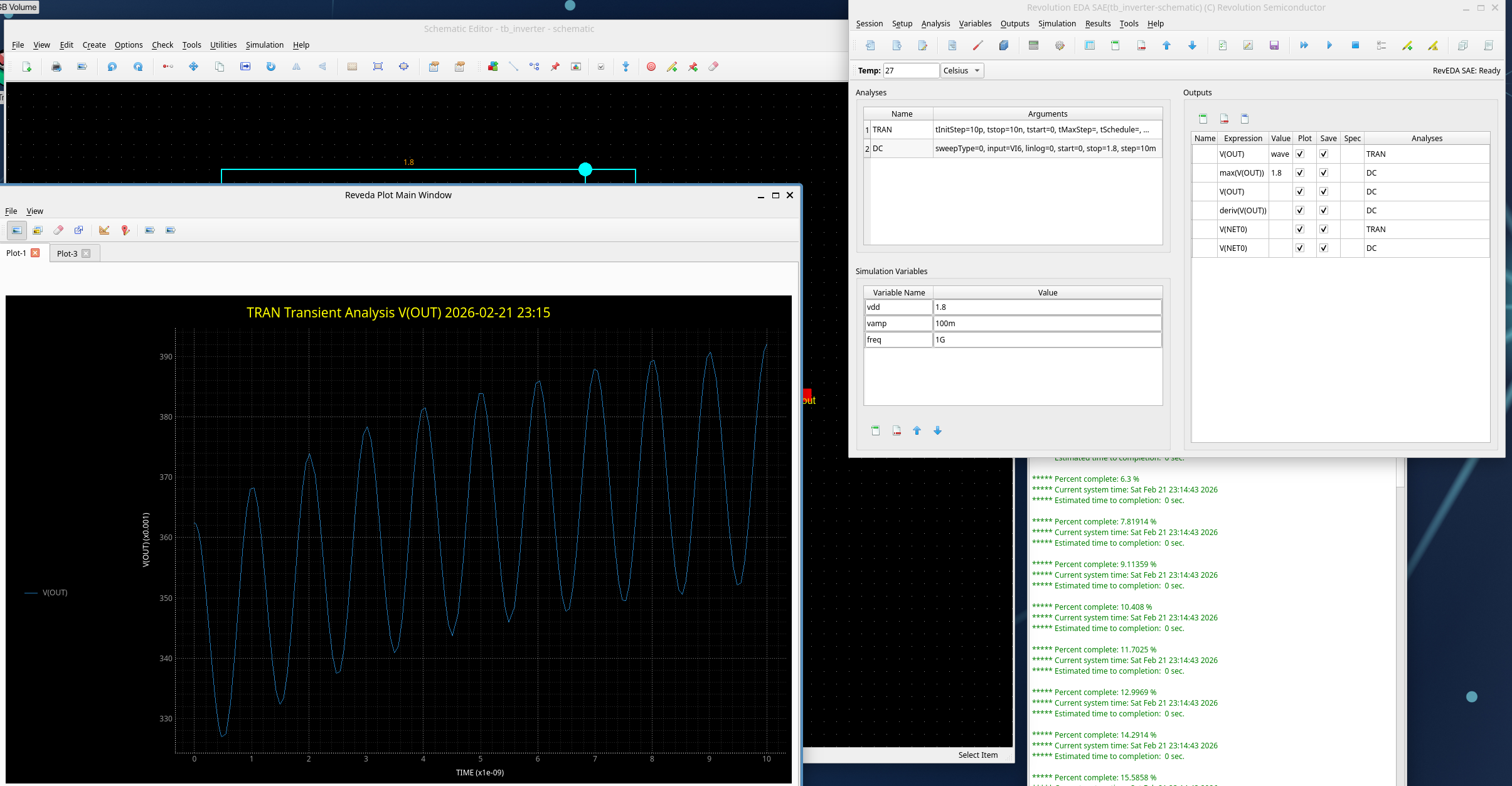
The Simulation Environment window (Ctrl+R from Schematic Editor) consists of:
- Menu Bar: Session, Setup, Analysis, Variables, Outputs, Simulation, Results, Tools, and Help menus
- Main Toolbar: Quick access to save/load, setup, analyses, variables, outputs, netlist, and run operations
- Settings Toolbar: Temperature setting with Celsius/Kelvin selection and status message
- Analyses Panel: Table showing configured analyses with enable/disable state
- Variables Panel: Table for defining sweep variables with add/delete/reorder controls
- Outputs Panel: Table for managing output signals with plot/save/expression columns
Menu Structure
- Session: Save/Load revbench, show design window, exit
- Setup: Design selection, simulation setup, model libraries, include paths
- Analysis: Analyses configuration, simulation options
- Variables: Set/add/delete/reorder simulation variables
- Outputs: Setup outputs, select on schematic (plot/save), save options
- Simulation: Netlist and Run, Run, Stop, convergence help, run options, netlist create/display, simulation log
- Results: Plot Results, Back Annotate, Clear Annotations (provided by revedaPlot plugin)
- Tools: SPICE Editor, Verilog-A Editor
- Help: About, License Status
Xyce Run Options
- Binary or ASCII raw file output
- NOX nonlinear solver usage
- Log file generation
- Syntax checking mode
- HSpice extension compatibility levels (All, Separator, Units, Math, None)
- Maximum integration order
- Random seed for Monte Carlo
Supported Analysis Details
DC Analysis
- Linear and logarithmic sweeps
- Voltage source, current source, or parameter sweeps
- Nested parameter sweeps with multiple variables
- Operating point analysis with configurable save level
AC Analysis
- Linear, octave, and decade frequency sweeps
- Configurable start/stop frequency and number of points
- Small-signal frequency response
- Complex impedance and admittance output
Transient Analysis
- Configurable initial time step, stop time, and maximum step size
- Initial condition support (UIC option)
- Scheduled analysis with time-based events
- Trap and Gear integration methods
- Local truncation error control (LTE levels 0–3)
Noise Analysis
- Input-referred and output noise calculations
- Configurable output node, reference node, and input source
- Optional source resistance specification
- Linear and decade frequency sweeps
Harmonic Balance
- Steady-state analysis for nonlinear circuits
- Configurable fundamental frequency and number of harmonics
- Intermodulation maximum order
- Time-domain HB (TAHB) option with startup periods and number of points
- Voltage limiting and IC data saving options
Installation and Usage
The revedasim plugin is automatically loaded when Revolution EDA starts. A valid license is required. Access simulation features through:
- Launch: Open from the Schematic Editor via Simulation → Simulation Environment (Ctrl+R)
- Setup: Configure simulator path, model libraries, and include paths
- Analyses: Select and configure desired analysis types
- Variables: Define sweep parameters (or copy from schematic)
- Outputs: Add signals to plot/save (manually or by clicking on schematic nets)
- Run: Click “Netlist and Run” to generate netlist and execute simulation
- Results: View results automatically in revedaPlot, or use Back Annotation
Configuration
Simulation settings can be configured through:
- Simulation Setup dialog: Simulator path, plugin path, PDK path, output directory, job limit
- Environment variables: e.g.,
REVEDA_VA_MODULE_PATHfor Verilog-A modules - Revbench views: Per-cell persistent simulation configurations saved as library views
- Global solver options: Nonlinear, time integration, device, and parser options
License
Commercial — proprietary add-on to Revolution EDA. A valid license key is required.
Contact us to learn more about RevedaSim.